Loading Configuration
Coding Style wiki
Method 1: Code Specification
Directly specify the loading of specific hotfix DLLs through code.
Attention Pros: High efficiency, direct execution. Cons: Hard to maintain; after changing hotfix DLLs, AOT needs to be repackaged and recompiled.
Hotfixers.CheckHotfix
(
    // Download and load hotfix files from HotfixPackage
    "HotfixPackage",
    // Metadata for AOT assemblies
    new string[]
    {
        "mscorlib.dll",
        "UniTask.dll"
    },
    // Hotfix assemblies
    new string[]
    {
        "HotfixerDemo.Hotfix.Runtime.dll"
    }
);
Method 2: Configuration File
Automatically load hotfix DLLs after reading the configuration file from StreamingAssets.
Attention Pros: Easy to maintain; hotfix DLLs can be replaced without repackaging and recompiling AOT. Cons: Requires requesting and reading files, resulting in a minimal performance loss.
// Auto try to load HotfixManifest.dat from StreamingAssets
Hotfixers.CheckHotfix
(
    // Download and load hotfix files from HotfixPackage
    "HotfixPackage",
    () =>
    {
        Debug.LogWarning("<color=#ff8321>Please generate the HotfixManifest.dat file in the StreamingAssets folder using the MenuItem -> OxGFrame/Hotfixer/Hotfix Dll Config Generator.</color>");
    }
);
Generate Configuration File
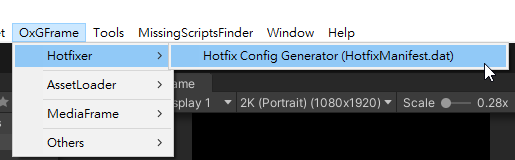
Open the Hotfix Dll Config Generator.
After filling in the relevant configurations, click the Cipher Process / Plaintext Process button to generate the configuration file (automatically output to the StreamingAssets directory).
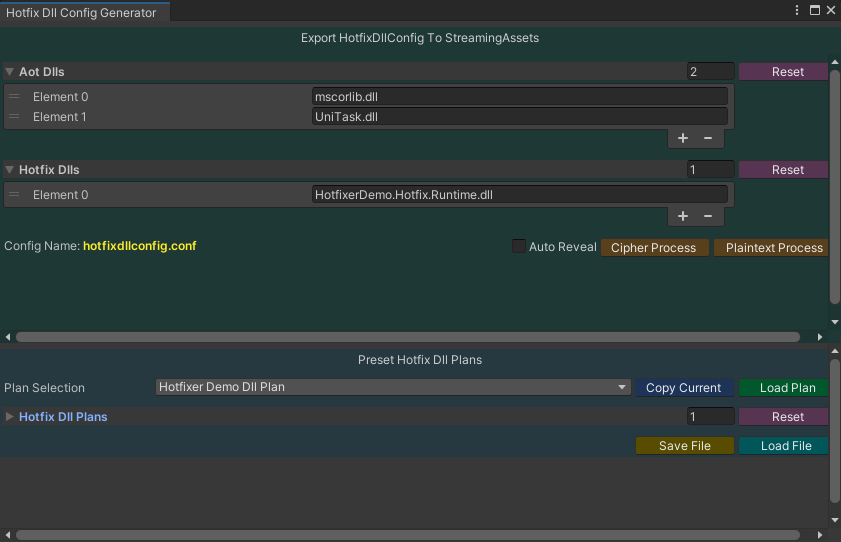
Configuration file output and content.


Reminder The HotfixManifest.dat file name and extension can be customized (refer to configuration settings).
Encoding Conversion
If outputting Cipher or Plaintext, you can select the file and use Right-Click to perform the conversion directly.

Important During development, it is recommended to use Plaintext for easier debugging; for official release, Cipher is strongly recommended.