加載方式
Coding Style wiki
通過 Resources 加載
提醒 使用 Resources 加載時,不需要進行額外配置,僅將資源放在 Resources 下,並且直接使用 res# 作為前墜 + 資源路徑進行加載。
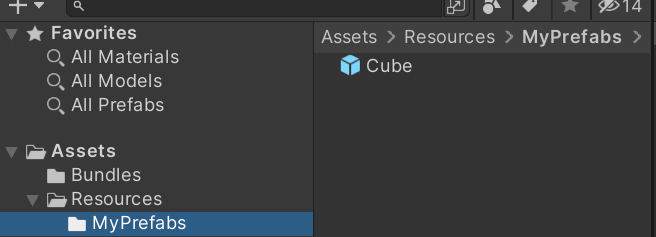
重要 使用 res# 作為前墜時,將會切換成 Resources 加載方式。
// res# prefix
AssetLoaders.LoadAssetAsync<GameObject>("res#MyPrefabs/Cube");
通過 AssetBundle 加載
步驟 1.
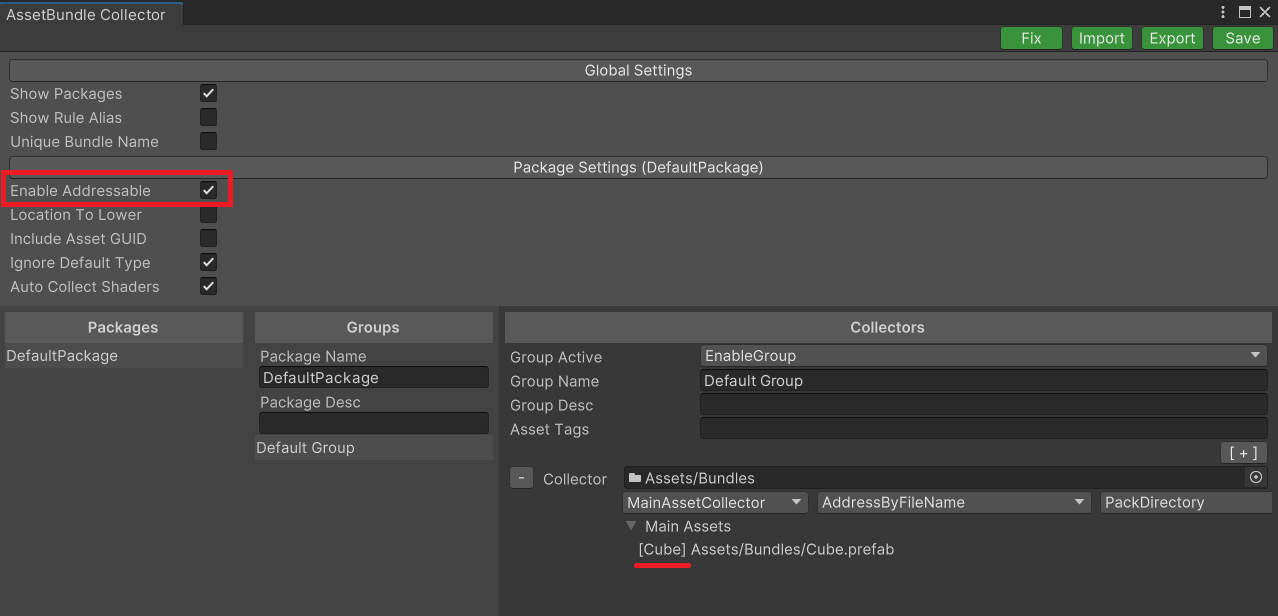
必須先通過 YooAsset Collector 配置。
注意 尋址名稱需要注意,圖中的 DefaultPackage 包含尋址名稱的有 Cube。
步驟 2.
另外使用 AssestBundle 進行開發時,也需要 PatchLauncher 進行 Runtime 配置,主要是使用 AssetBundle 加載時,需要初始相關配置。
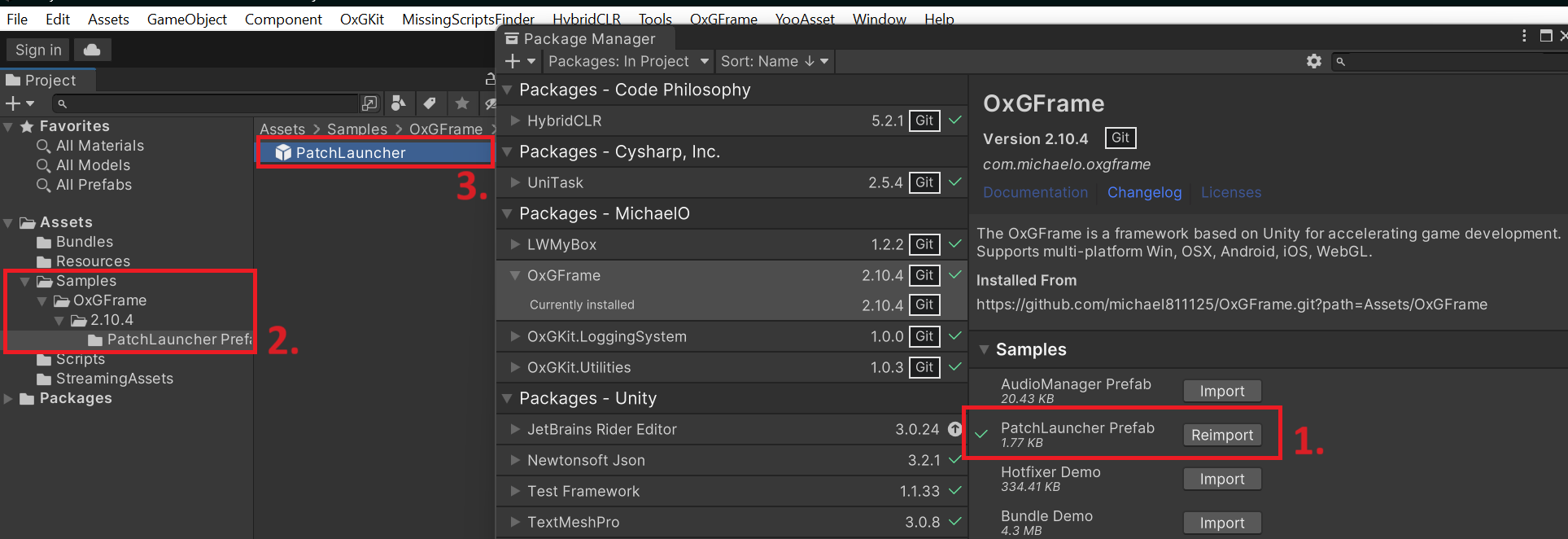
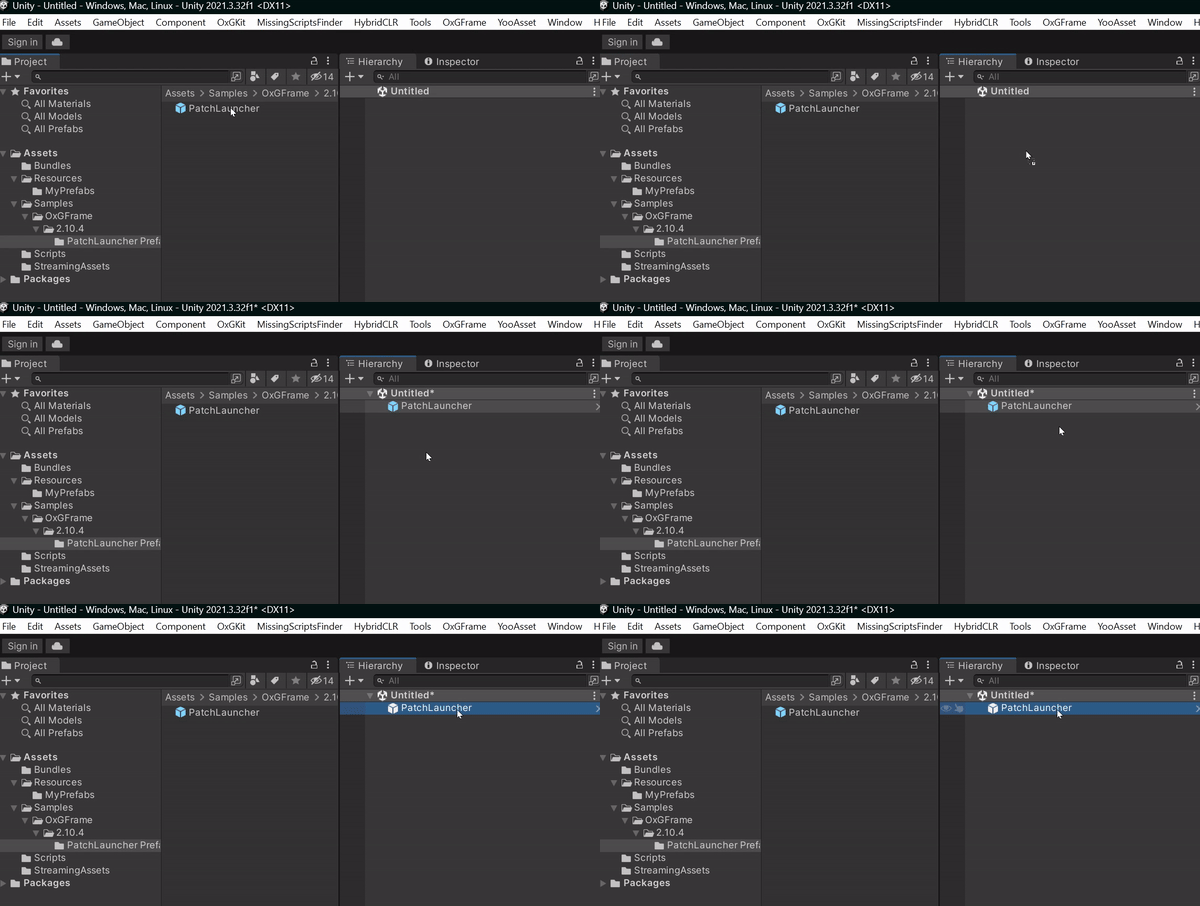
注意 匯入後拖曳到 Hierarchy 窗體。
步驟 3.
配置預設 Packages,將會在 Runtime 時進行初始。
- 預設 App Packages。
- 預設 DLC Packages。
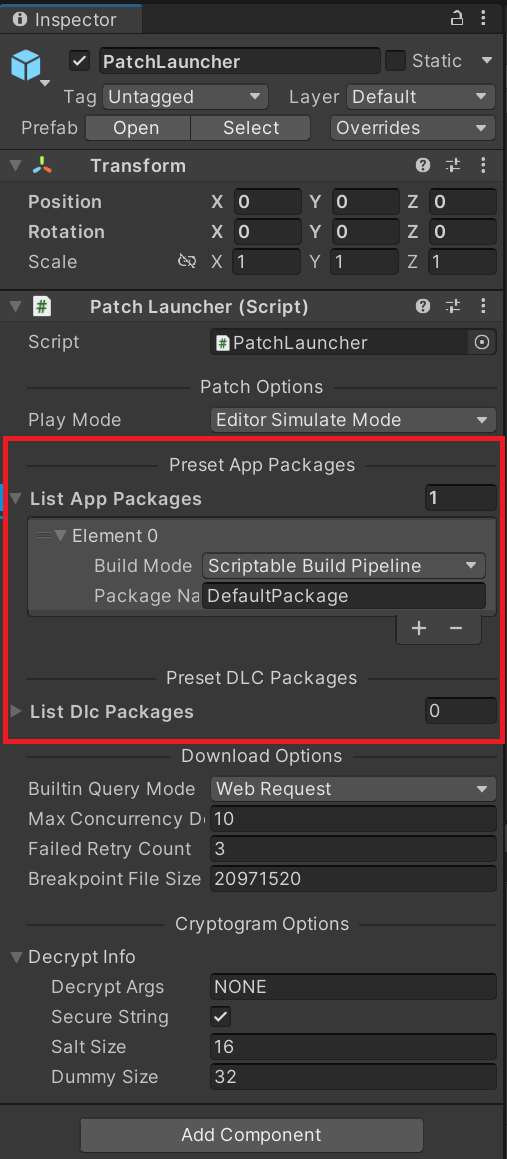
重要 預設 Packages 將由主下載器進行管理與檢查,所以不包含在預設中的 Packages,必須自行通過 API 初始,說明如下。
App Package
// [Load asset and download from specific package (Export App Bundles for CDN)]

AppPackageInfoWithBuild packageInfo = new AppPackageInfoWithBuild()
{
    buildMode = BundleConfig.BuildMode.ScriptableBuildPipeline,
    packageName = "OtherPackage"
};

bool isInitialized = await AssetPatcher.InitAppPackage(packageInfo, true);
if (isInitialized)
    await AssetLoaders.LoadAssetAsync<GameObject>("packageName", "assetName");
DLC Package
// [Load asset and download from specific package (Export Individual DLC Bundles for CDN)]

DlcPackageInfoWithBuild packageInfo = new DlcPackageInfoWithBuild()
{
    buildMode = BundleConfig.BuildMode.ScriptableBuildPipeline,
    packageName = "DlcPackage",
    dlcVersion = "dlcVersion",
    withoutPlatform = false
};

bool isInitialized = await AssetPatcher.InitDlcPackage(packageInfo, true);
if (isInitialized)
    await AssetLoaders.LoadAssetAsync<GameObject>("packageName", "assetName");
注意 區分 App Packages 跟 DLC Packages,注意路徑不同。
- App Packages
- 路徑隨著主程式版號 (.../CDN/<ProductName>/<Platform>/<AppVersion>/<PackageName>)。
- 手動進行 AssetPatcher.InitAppPackage 的初始 (如果 autoUpdate = false,則需要自行另外調用 AssetPatcher.UpdatePackage 進行 Manifest 的更新)。
- DLC Packages
- 路徑包含平台 (.../CDN/<ProductName>/<Platform>/DLC/<PackageName>/<DlcVersion>)。
- 路徑不含平台 (.../CDN/<ProductName>/DLC/<PackageName>/<DlcVersion>),屬於所有平台的共用資源。
- 支持特定版本 DLC package 的下載與 DLC package 卸載功能,需手動進行 AssetPatcher.InitDlcPackage,並且指定特定 dlcVersion,對於 dlcVersion 也可以單一固定 dlcVersion (ex: "latest"),變成只要 DLC 有更新就可以使用固定路徑進行更新。
注意 另外,PlayMode 的說明如下。
- Editor Simulate Mode (開發模式)。
- Offline Mode (單機模式)。
- Host Mode (聯機模式),
- WebGL Mode (WebGL 模式)。
步驟 4.
前置作業完成後,並且確保主配置流程已初始 -> AssetPatcher.IsInitialized(),就可以開始加載了,如以下。
從 DefaultPackage 中加載尋址名稱為 Cube 的物件。
AssetLoaders.LoadAssetAsync<GameObject>("DefaultPackage", "Cube");
注意 額外補充,流程先後順序,說明如下。
- 輪詢初始狀態 AssetPatcher.IsInitialized() == true -> 即可加載內置資源與執行檢查更新。
- 執行檢查更新 AssetPatcher.Check() -> 輪詢完成狀態 AssetPatcher.IsDone() == true -> 完成更新後 -> 即可加載更新資源。